Manage and Upload Images
Images are the operating system templates instances boot from.
View images
- Horizon
- Skyline
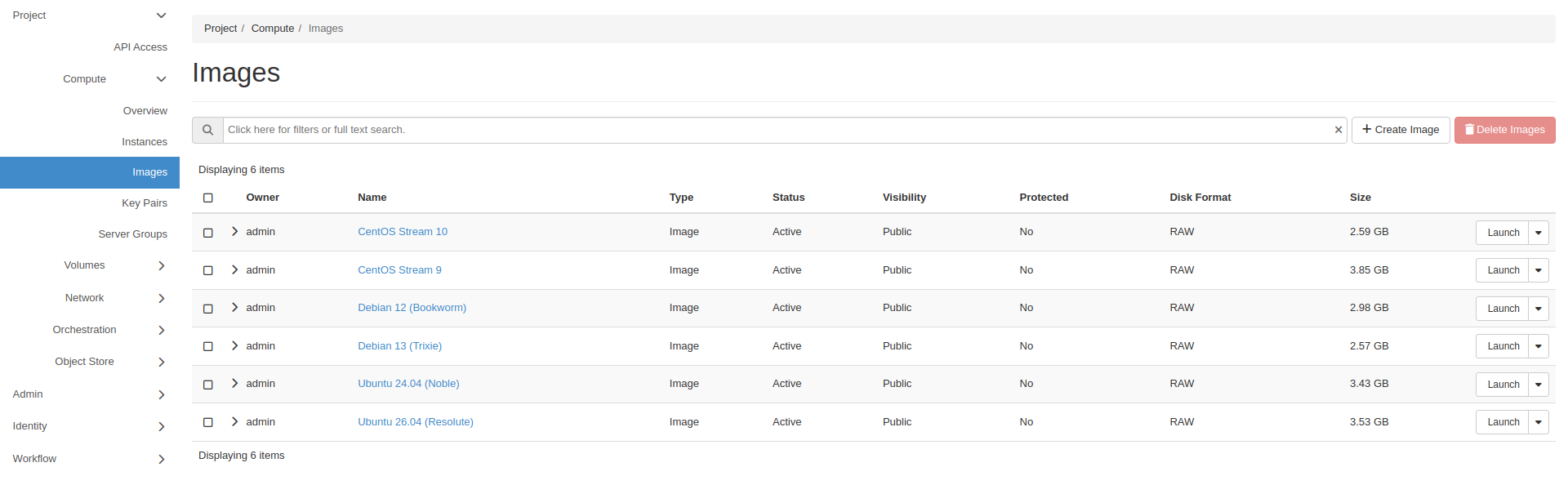
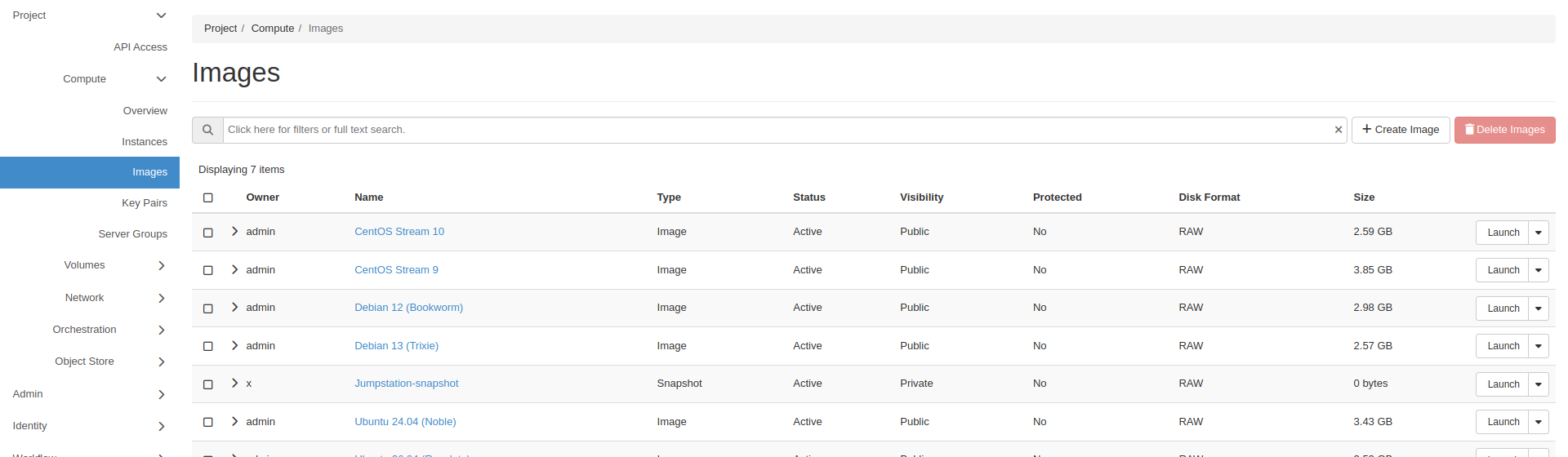
Go to Project -> Compute -> Images.
Go to Compute -> Images.
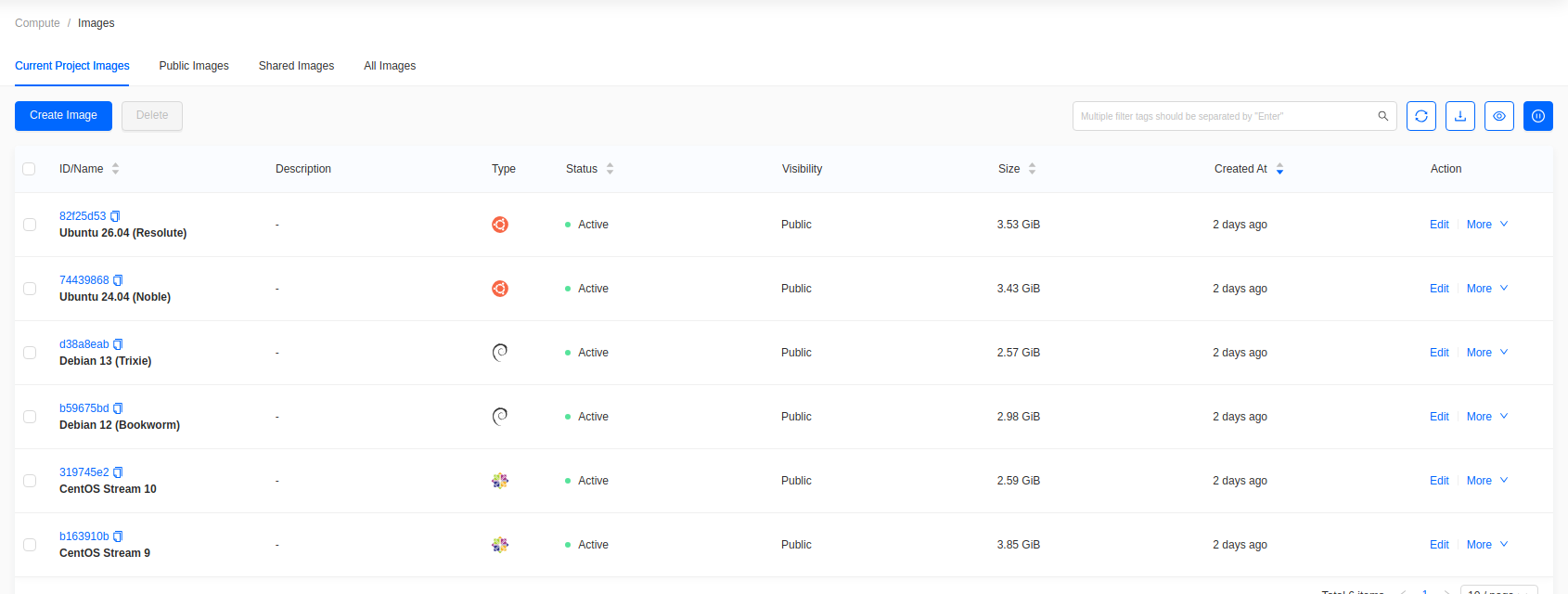
The list shows the distribution, OS version, minimum disk and memory, visibility, disk format, and size. Public images are available to every project.
Upload an image
- Horizon
- Skyline
Click Create Image.
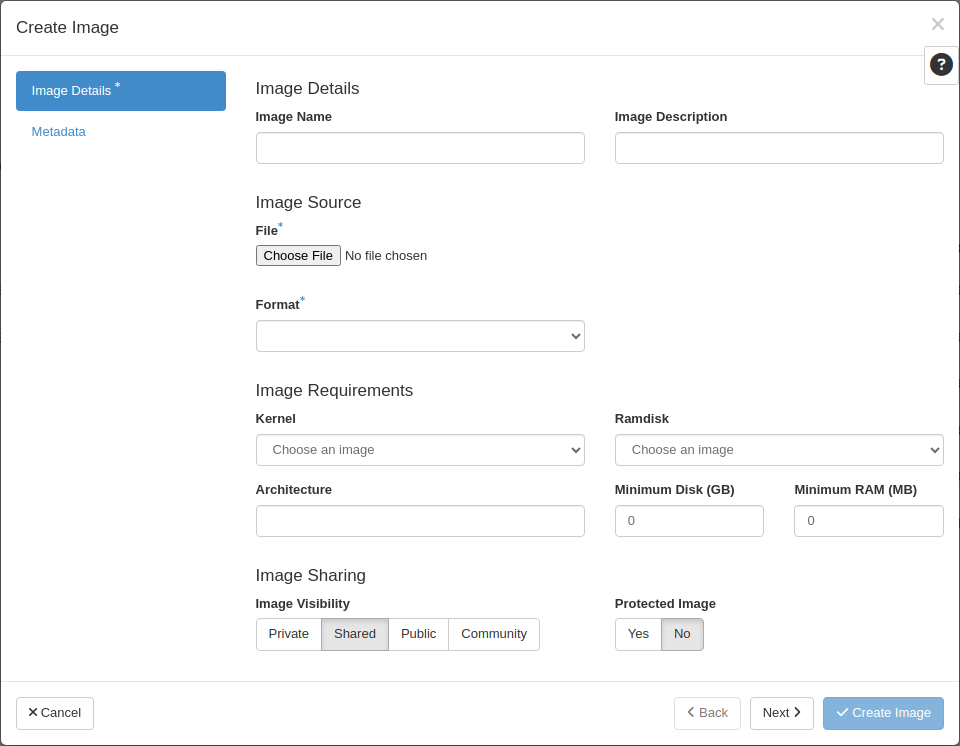
- Image Name: the name shown in the image list.
- Image Source: upload a local File, or fetch a URL.
- Format:
QCOW2orRAW. - Image Requirements: minimum disk and memory a flavor must meet.
- Visibility: Public shares the image with every project.
- Protected: enable to block deletion.
Click Create Image.
Click Create Image. This opens a full page rather than a dialog.
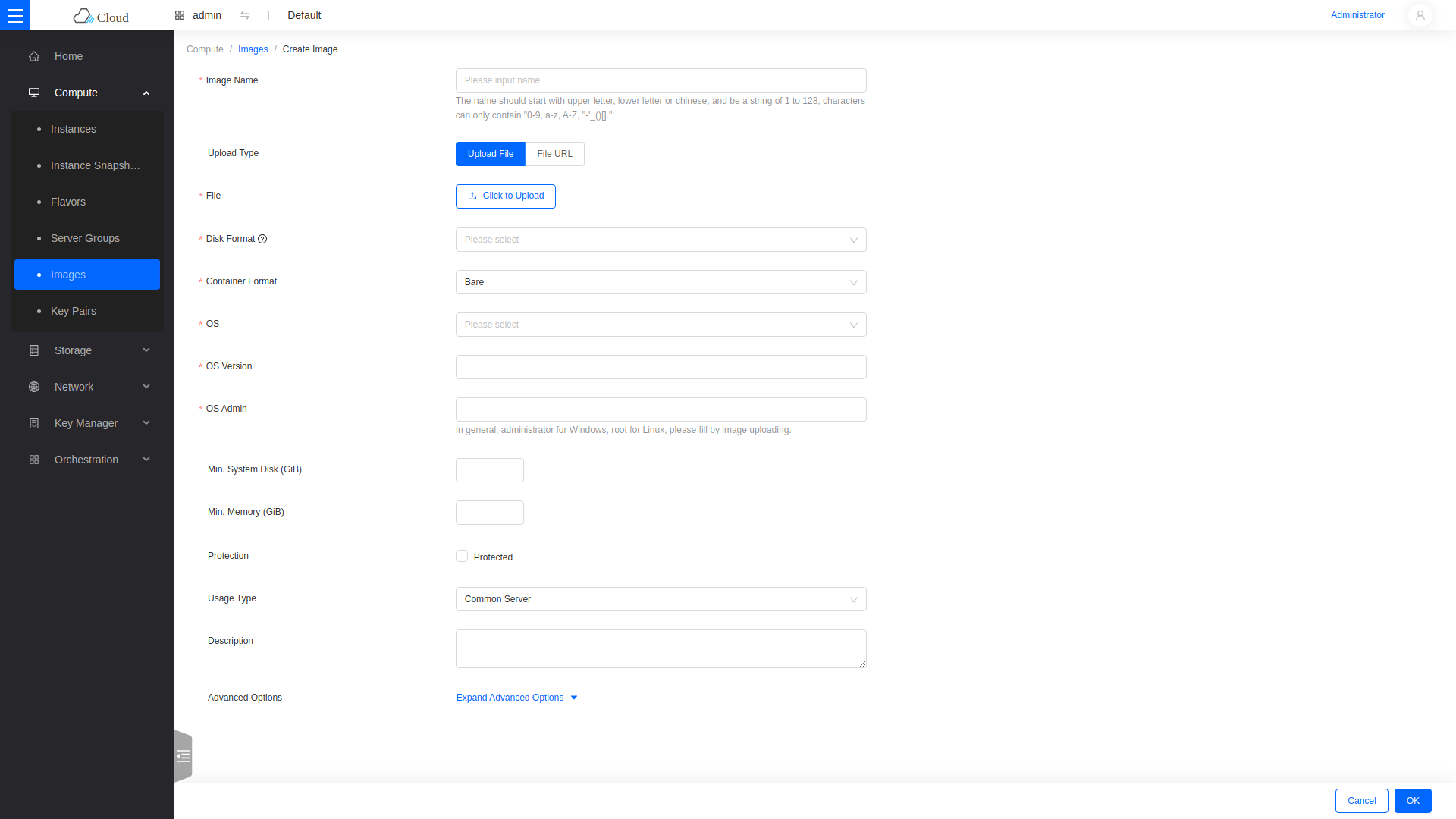
- Image Name: the name shown in the image list.
- Upload Type: upload a local File, or fetch a File URL.
- Disk Format:
QCOW2orRAW. - OS and OS Version: used to group the image under a distribution tab.
- OS Admin: the default login account, for example
ubuntuorcloud-user. - Min. System Disk and Min. Memory: the floor a flavor must meet.
- Visibility: Public shares the image with every project.
- Protection: enable to block deletion.
Click OK.
Ceph-backed clouds perform best with RAW. Ceph clones a RAW image to create an instance or volume. A QCOW2 image cannot be cloned, so it is converted every time an instance or volume is created from it. Images added through Glance's image import are converted to RAW automatically.
The image stays in queued or saving until the upload finishes.
Snapshot a running instance
A snapshot captures an instance's disk as a new image.
- Horizon
- Skyline
Go to Project -> Compute -> Instances, find the instance, then choose Create Snapshot. Snapshots appear under Project -> Compute -> Images with a type of Snapshot.
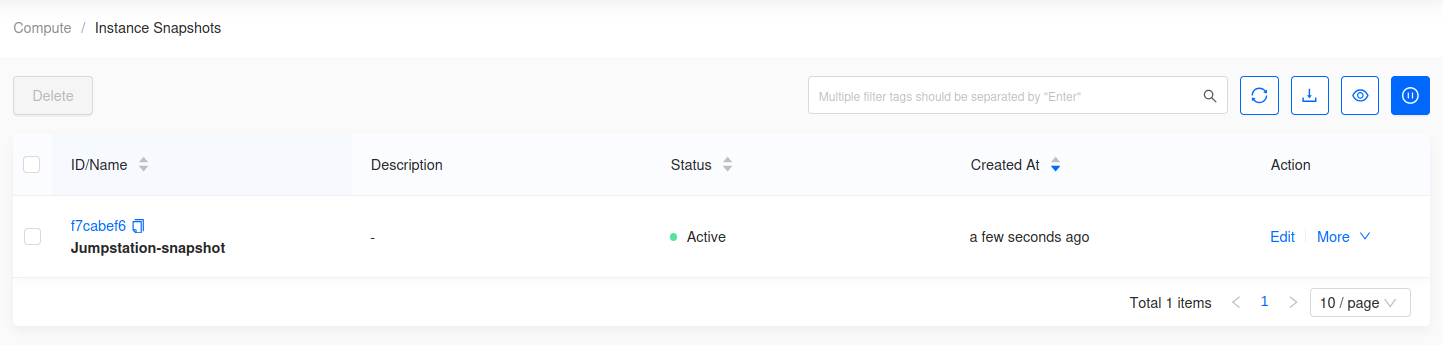
Go to Compute -> Instances, find the instance, then choose More -> Create Snapshot. Snapshots appear under Compute -> Instance Snapshots.
Shut the instance down before snapshotting if the workload writes to disk, so the snapshot is filesystem-consistent.