Create a User and Project
Create a project
- Horizon
- Skyline
Go to Identity -> Projects.
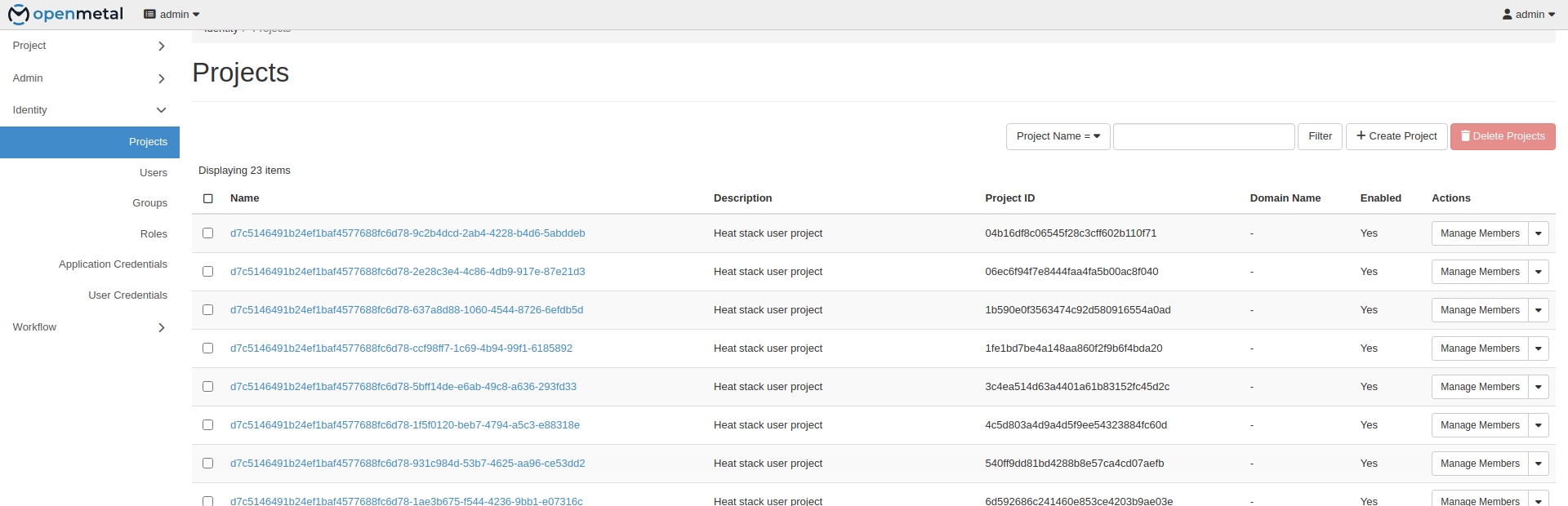
Click Create Project.
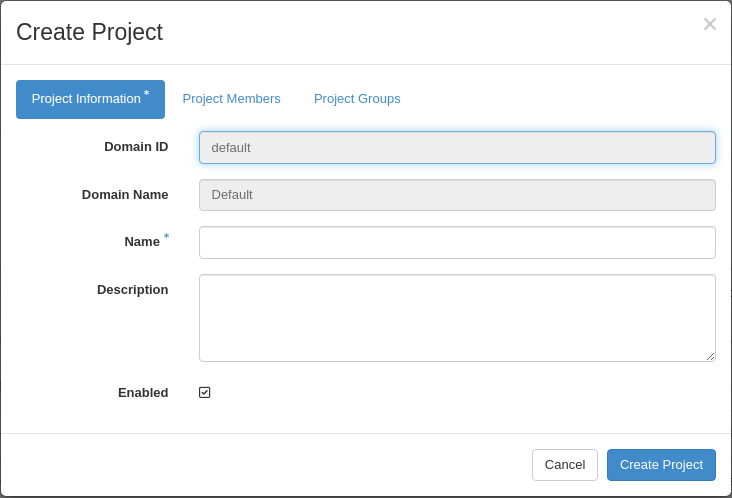
- Name: the project name. This example uses Development.
- Domain ID and Domain Name: read-only, taken from your session.
- Enabled: leave checked.
- Description: optional.
The Project Members and Project Groups tabs assign users and groups during creation. Both can be changed later.
Click Create Project.
Switch to the Administrator console, then go to Identity -> Projects.
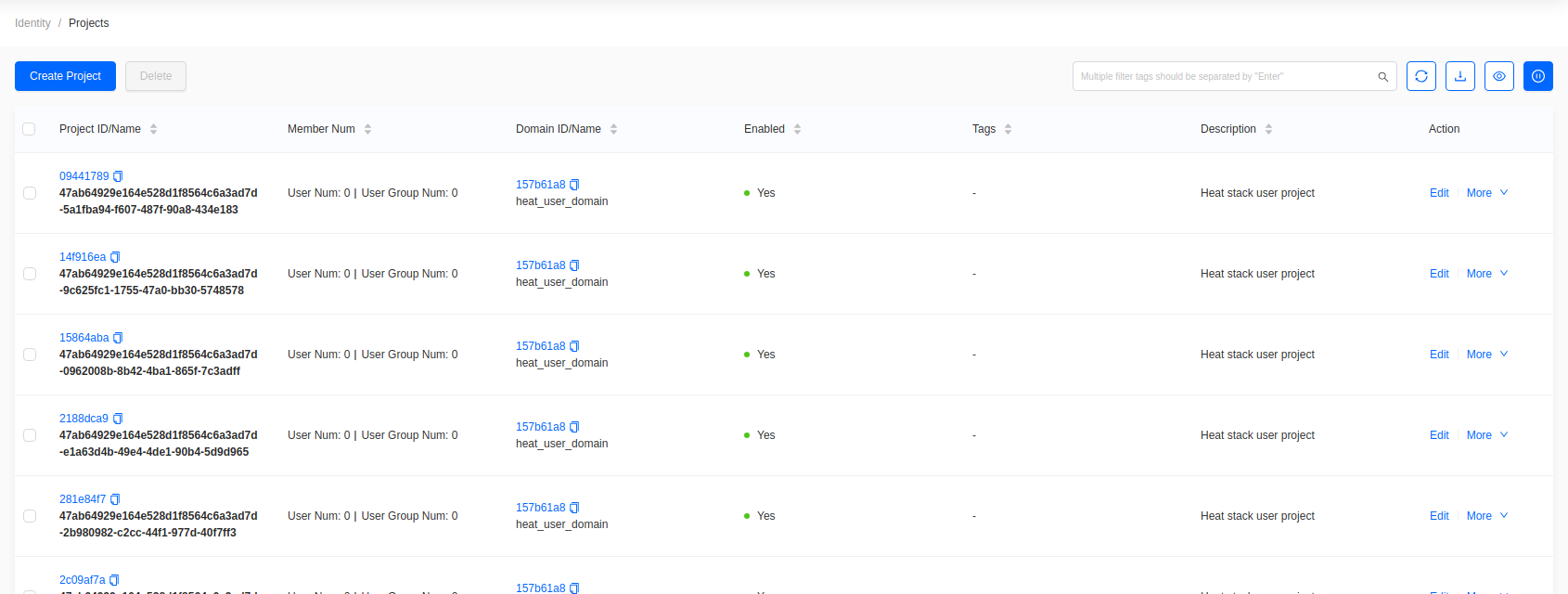
Click Create Project.
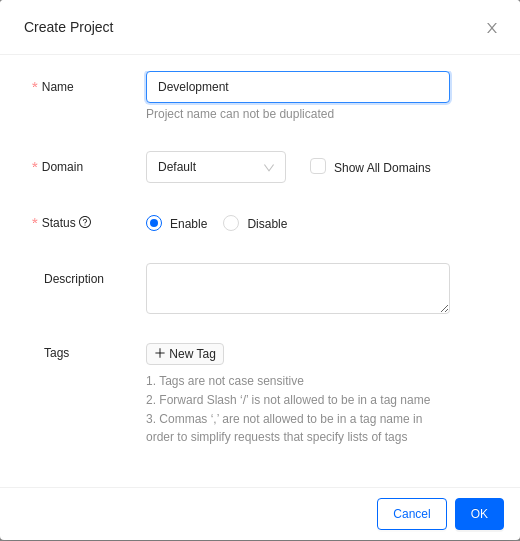
- Name: the project name. This example uses Development.
- Domain: leave as
Defaultunless you use multiple domains. - Status: leave enabled.
- Description, Tags: optional.
Click OK.
Set project quotas
- Horizon
- Skyline
Find the project in the list, then choose Modify Quotas from the actions menu.

Find the project in the list, then choose More -> Edit Quota.
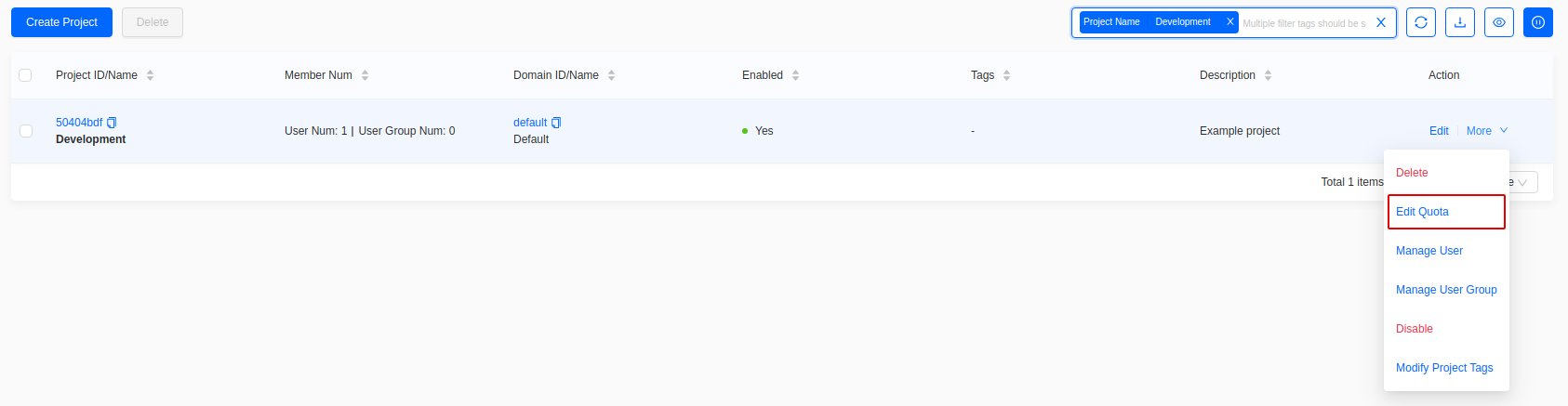
Quotas cap what the project may consume — instances, vCPUs, memory, volumes, floating IPs, and security groups. Leave a quota blank for unlimited.
Create a user
- Horizon
- Skyline
Go to Identity -> Users.
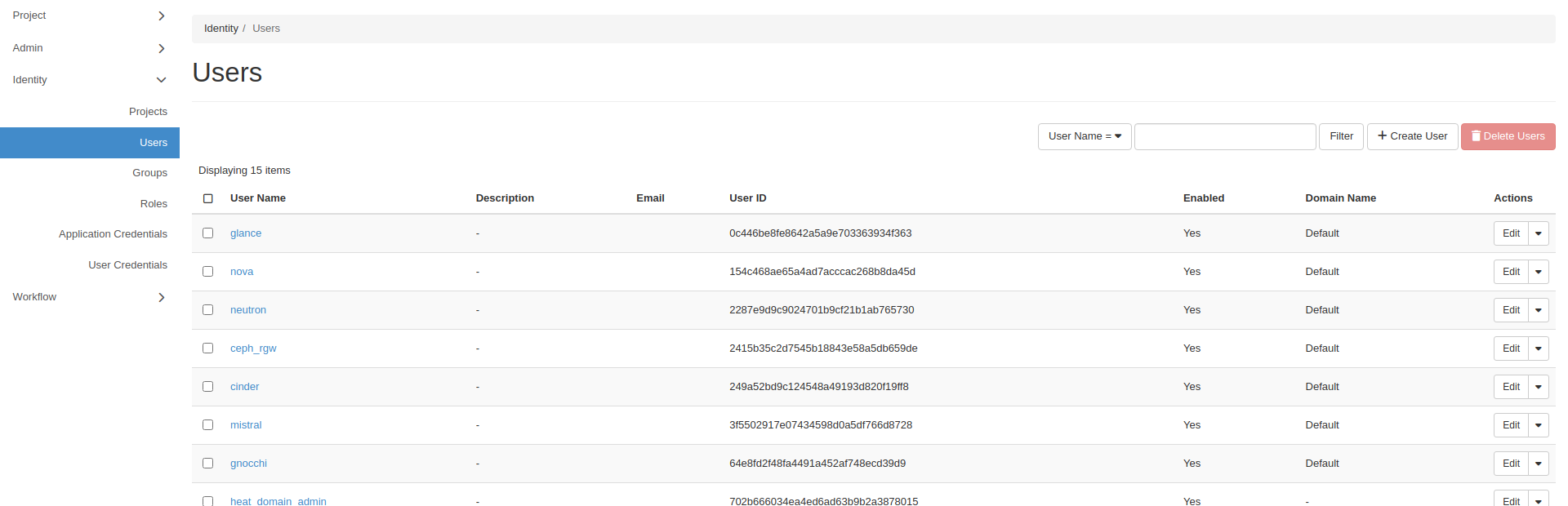
Click Create User.
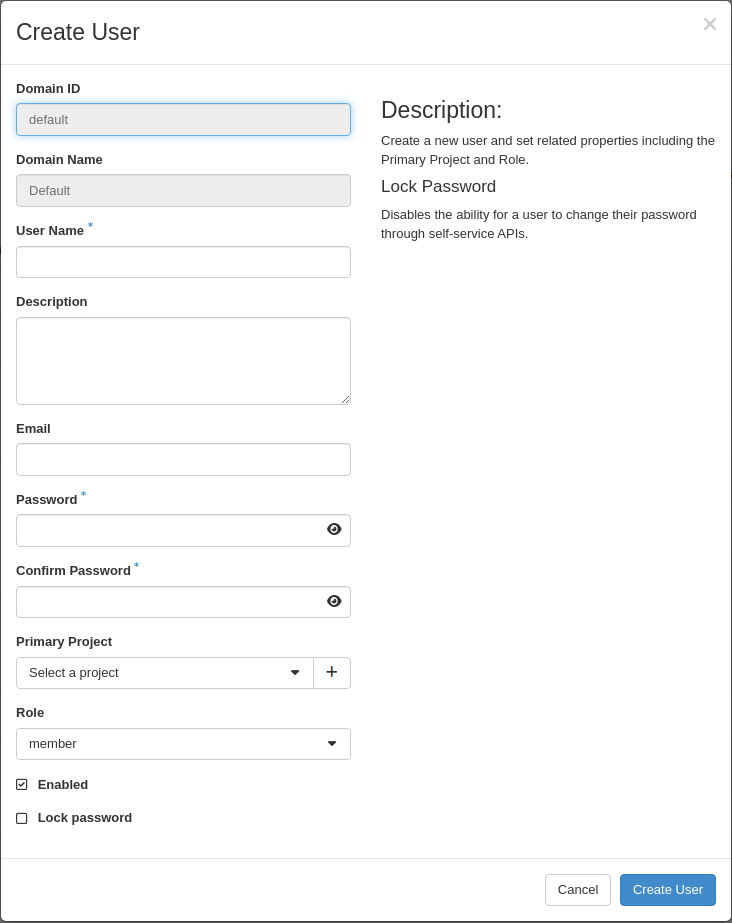
- User Name: the login name.
- Password and Confirm Password: the user's initial password.
- Domain ID and Domain Name: read-only.
- Primary Project and Role: assign the user to a project and give it a role.
- Email, Description: optional.
- Enabled: leave checked.
Click Create User.
Go to Identity -> Users.
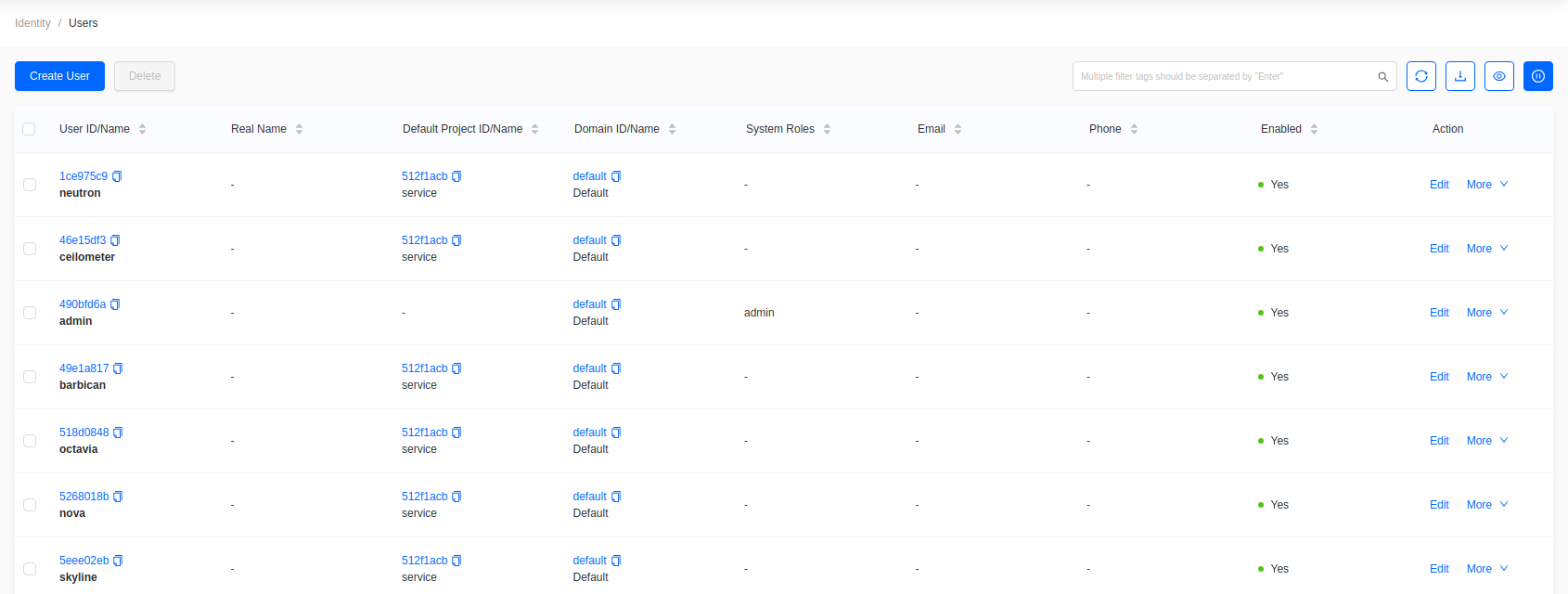
Click Create User. This opens a full page rather than a dialog.
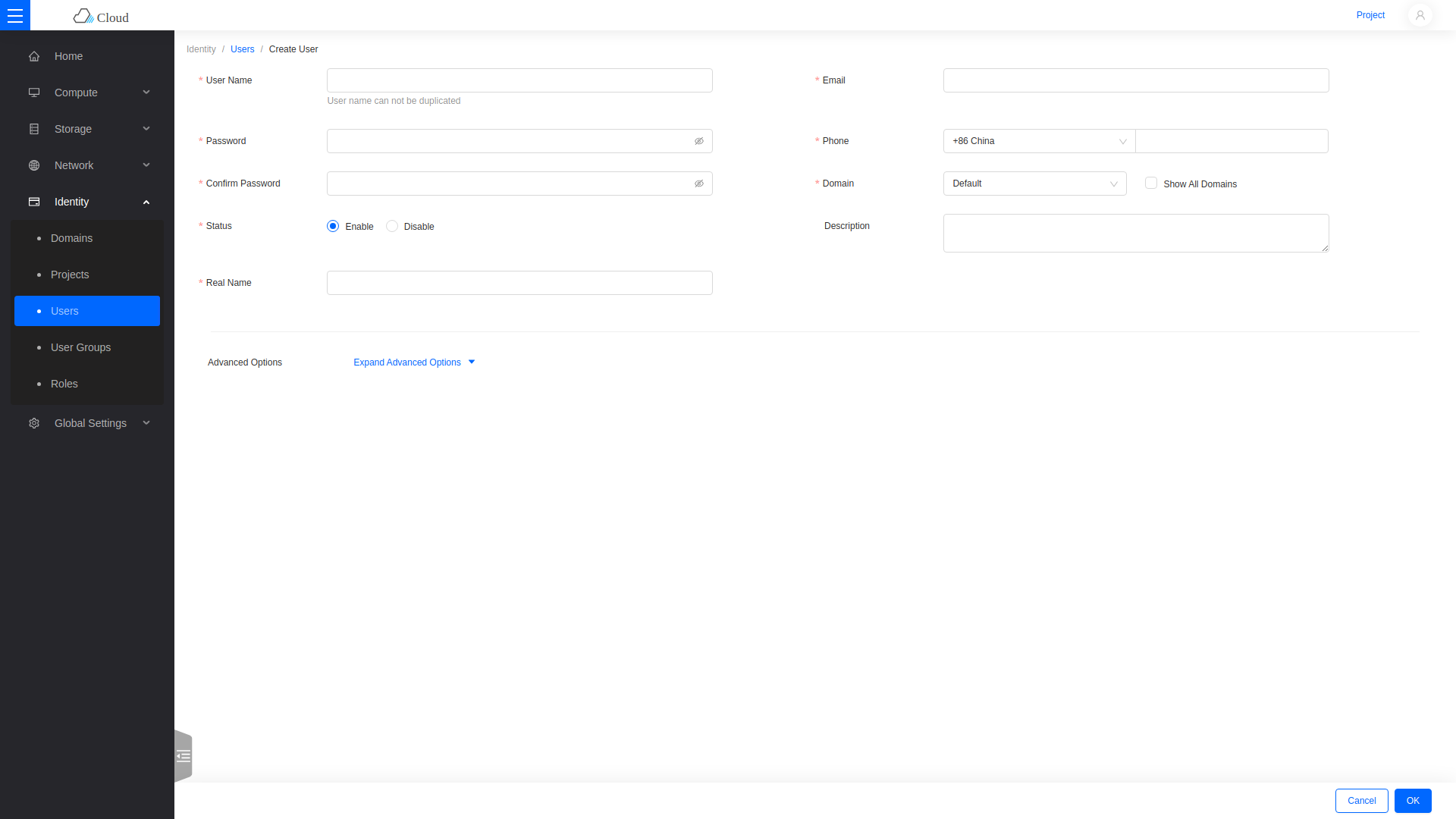
- Username: the login name.
- Password and Confirm Password: the user's initial password.
- Domain: leave as
Default. - Project and Role: assign the user to a project and give it a role.
- Email, Phone, Real Name, Description: optional.
Click OK.
The new user can now sign in and will see only the projects it belongs to.
Roles
member— normal tenant access within assigned projects.reader— read-only access.admin— full cloud administration.
Grant admin only to operators who administer the whole cloud.