How to Create an Instance
This guide creates a private network, a security group, a key pair, and an instance, then attaches a floating IP so the instance is reachable from outside the cloud.
Create a network and router
- Horizon
- Skyline
Horizon creates the network and the router separately.
Go to Project -> Network -> Networks.

Click Create Network. The form has three tabs.
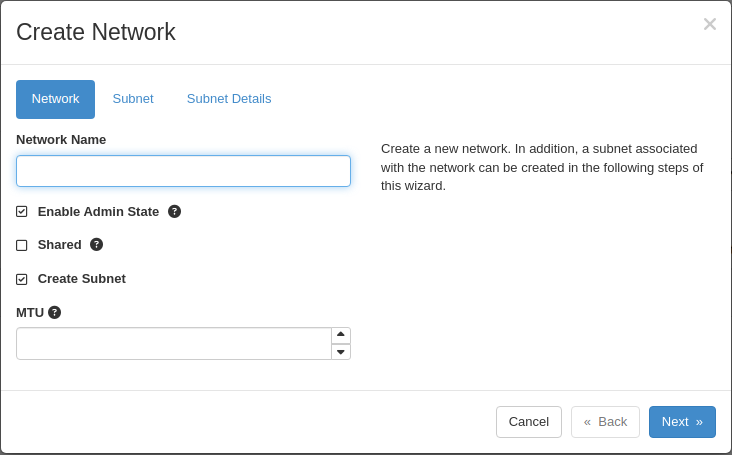
- Network tab — Network Name: Private. Leave Create Subnet checked.
- Subnet tab — Subnet Name: private-subnet. Network Address:
192.168.0.0/24. - Subnet Details tab — leave Enable DHCP checked. DNS name servers and allocation pools are optional.
Click Create.
Next go to Project -> Network -> Routers.

Click Create Router.
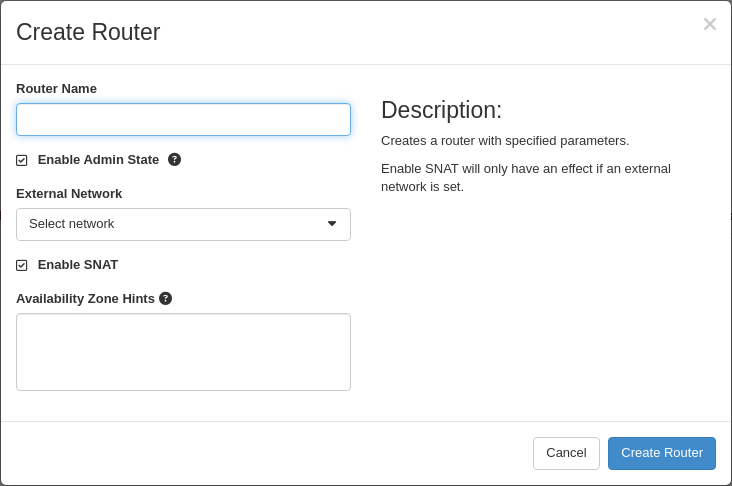
- Router Name: Router.
- External Network: External.
Click Create Router, then open the router, choose the Interfaces tab, and click Add Interface to attach private-subnet.
Quick Create builds the network, its subnet, and an attached router in one step.
Go to Network -> Networks.
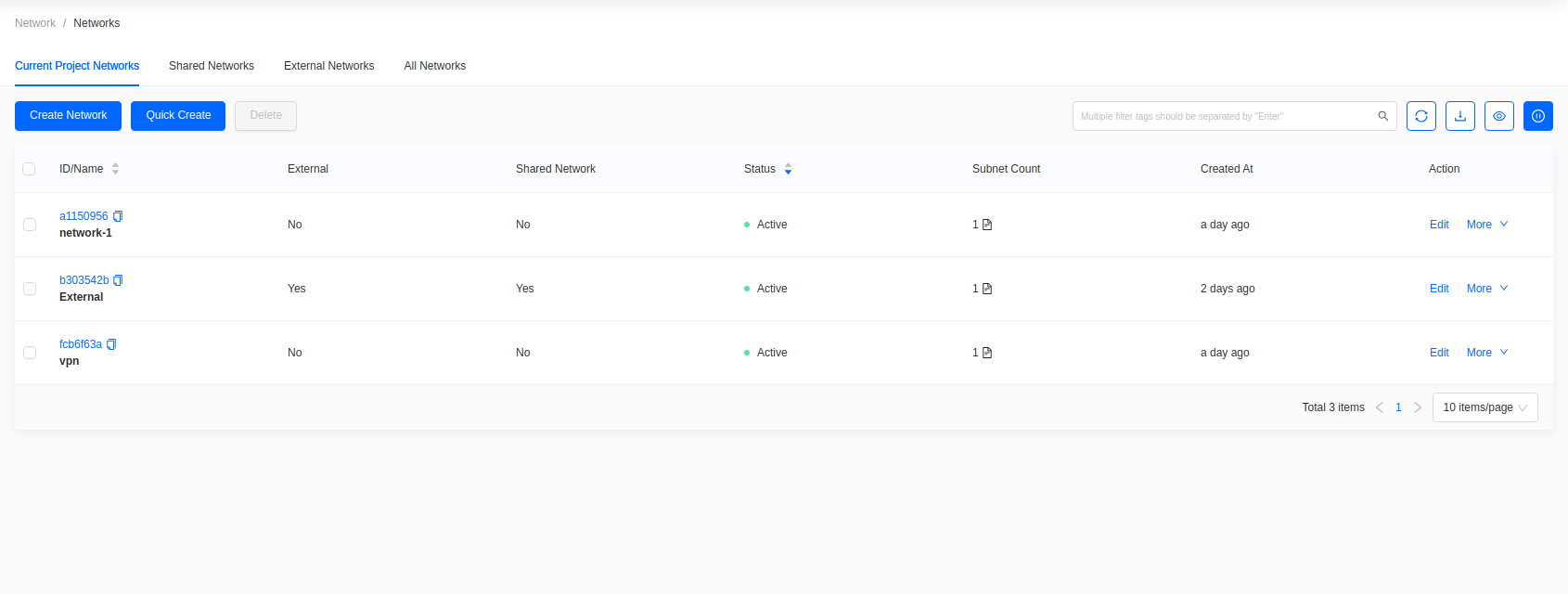
Click Quick Create.
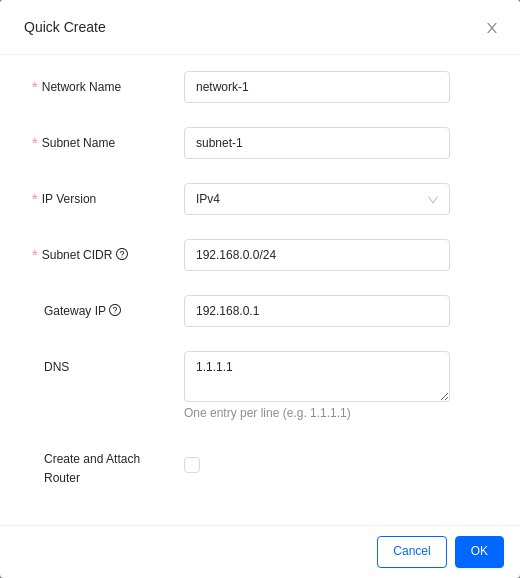
Fill in the form.
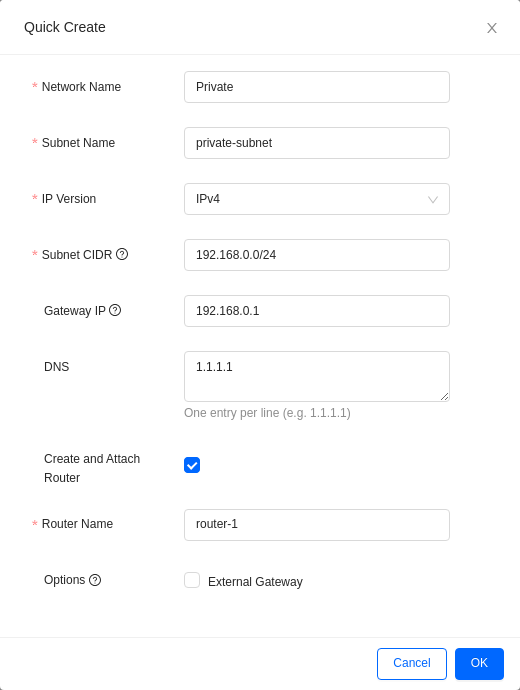
- Network Name: Private.
- Subnet Name: private-subnet.
- Subnet CIDR: a private range, for example
192.168.0.0/24. - Gateway IP and DNS: filled automatically.
- Create and Attach Router: check this, then set Router Name.
- Options -> External Gateway: check this and select External, or the router has no route out and floating IPs will not work.
Click OK.
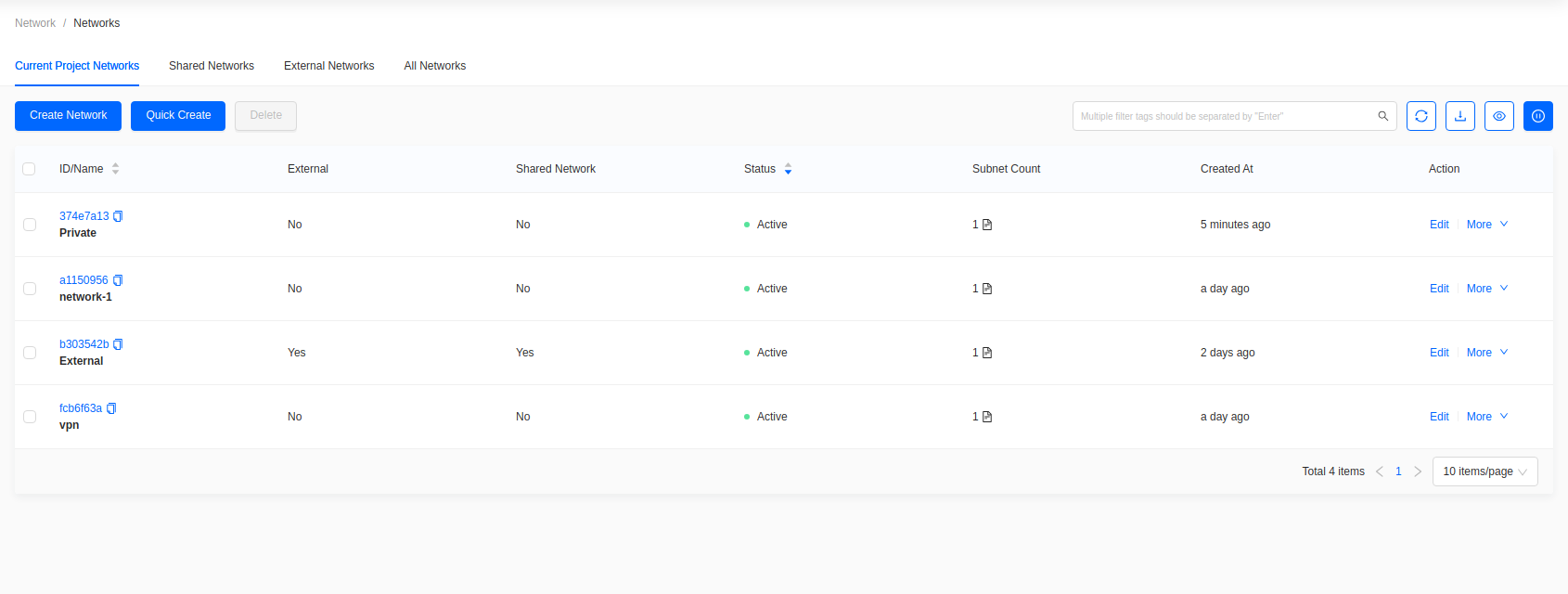
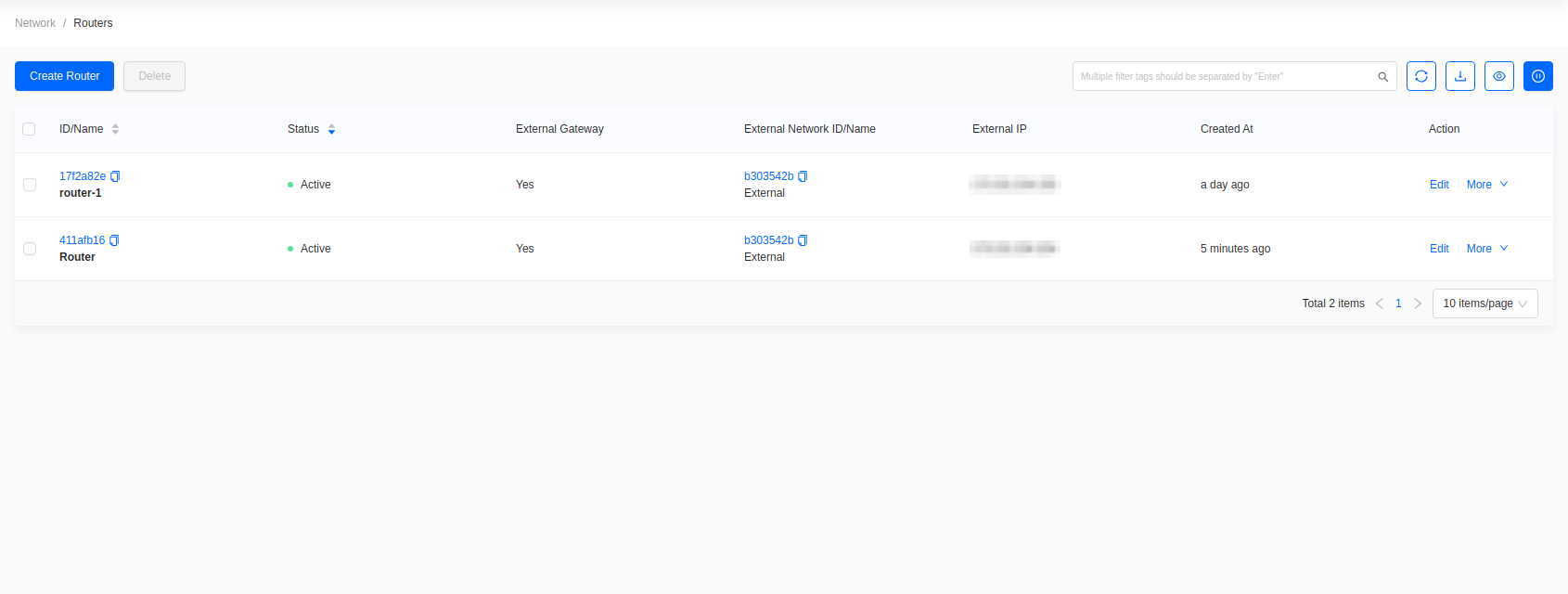
To build the pieces separately, use Create Network on this page and Create Router under Network -> Routers, then attach the subnet with More -> Connect Subnet.
View the topology
- Horizon
- Skyline
Go to Project -> Network -> Network Topology.
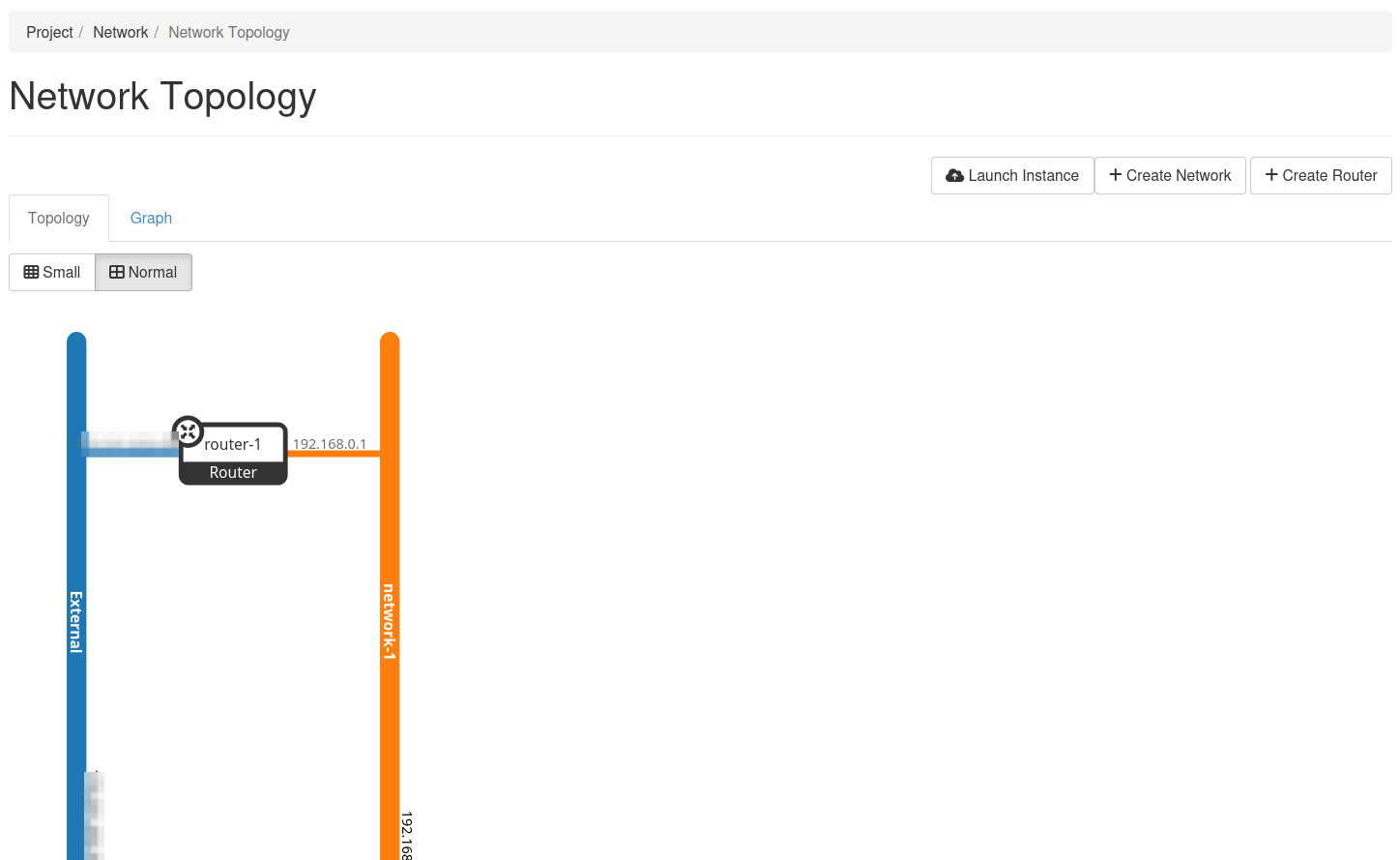
The Graph tab shows the same data as a node graph. Small and Normal change the level of detail.
Go to Network -> Topology.
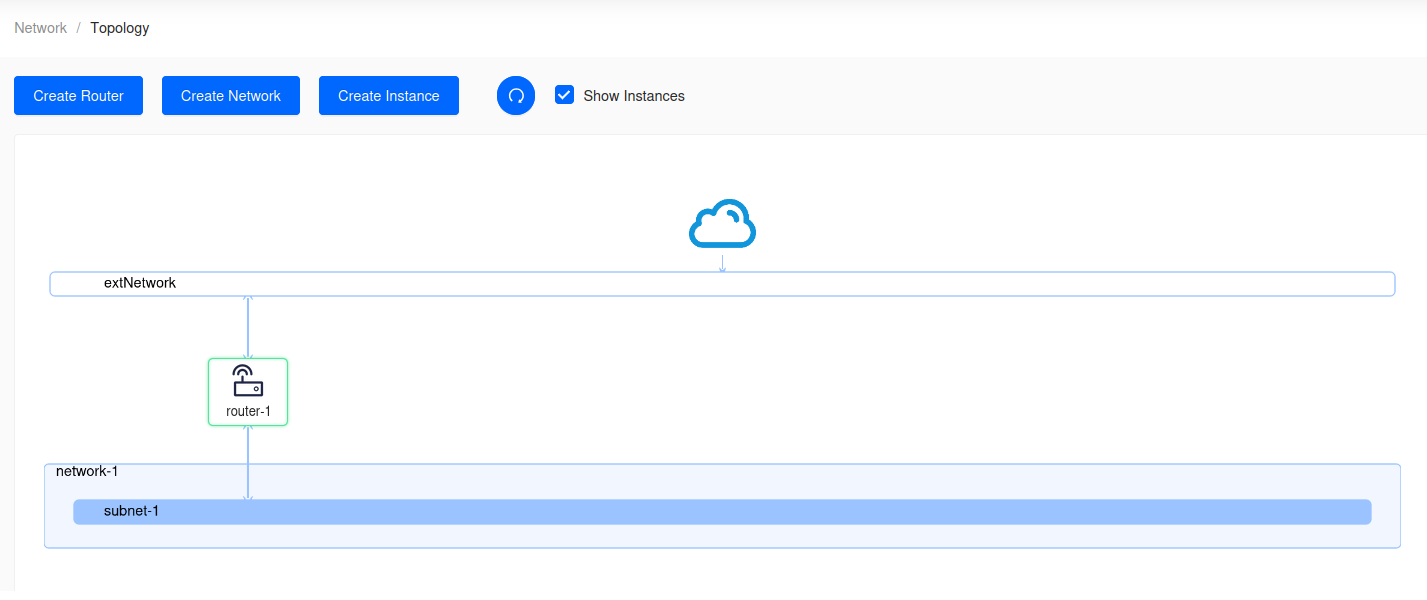
Clear Show Instances to reduce the diagram to networks and routers.
Create a security group
Security groups control traffic to and from instances. The default group allows inbound traffic only from instances in the same group, and allows all outbound traffic.
- Horizon
- Skyline
Go to Project -> Network -> Security Groups.
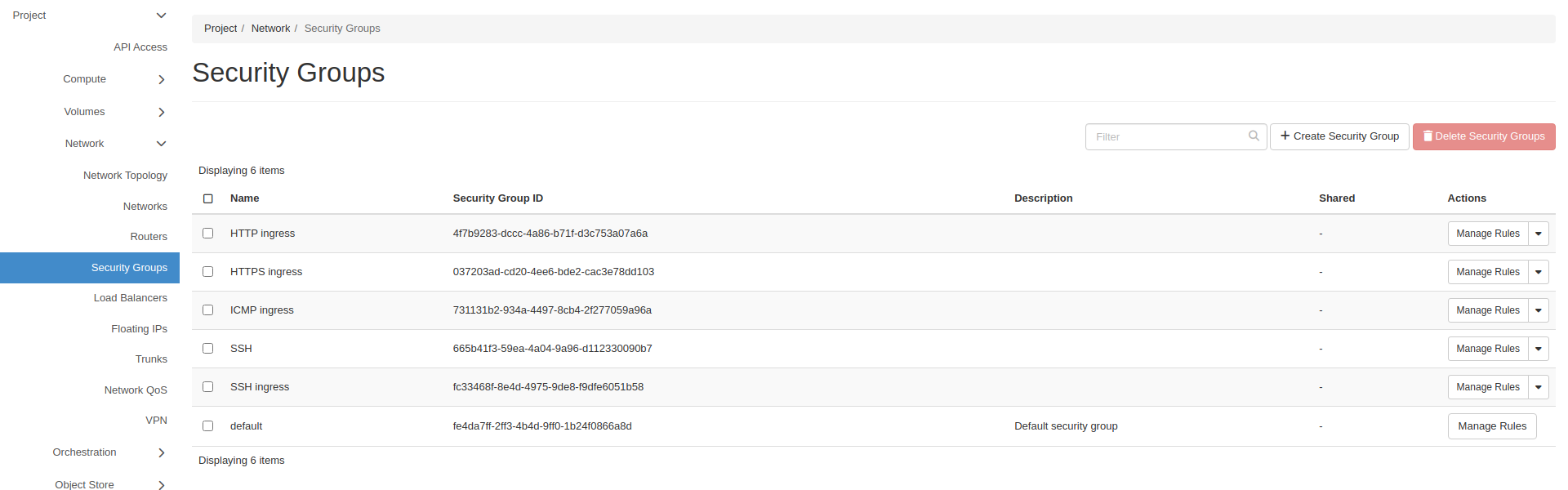
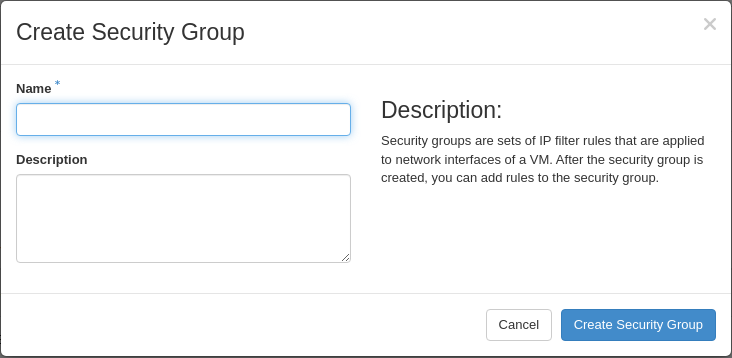
Click Create Security Group, name it SSH, then click Create Security Group.
Click Manage Rules on the new group.
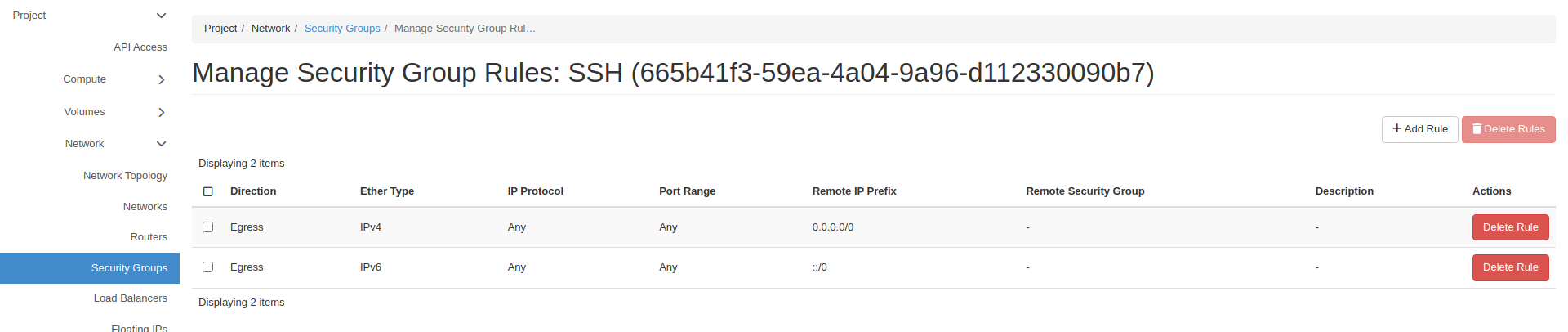
Click Add Rule.
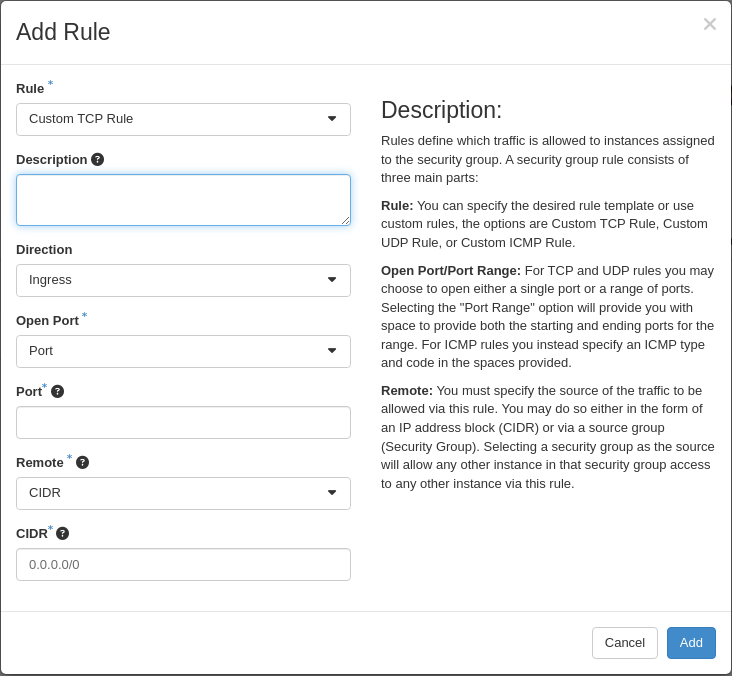
- Rule: SSH, which presets TCP port 22.
- Remote: CIDR.
- CIDR: the source allowed to connect.
Click Add.
Go to Network -> Security Groups.
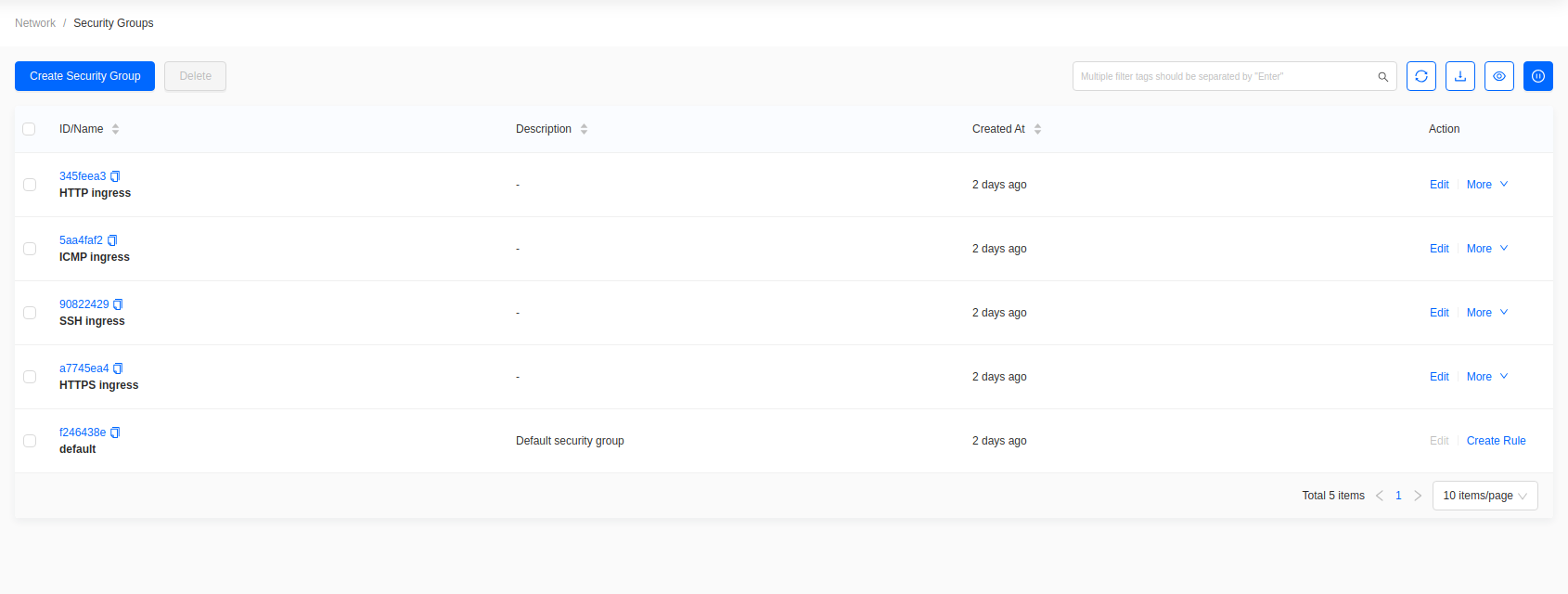
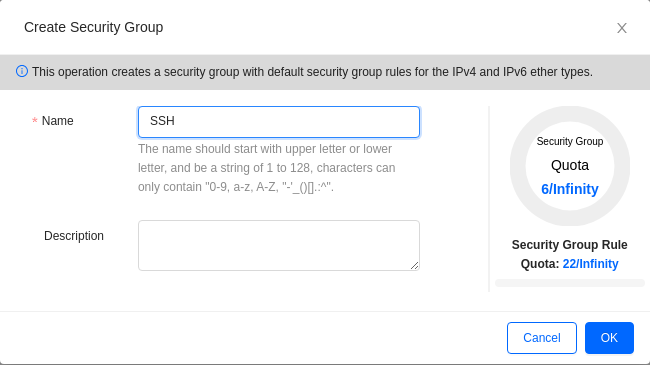
Click Create Security Group, name it SSH, then click OK.
Open the SSH group.
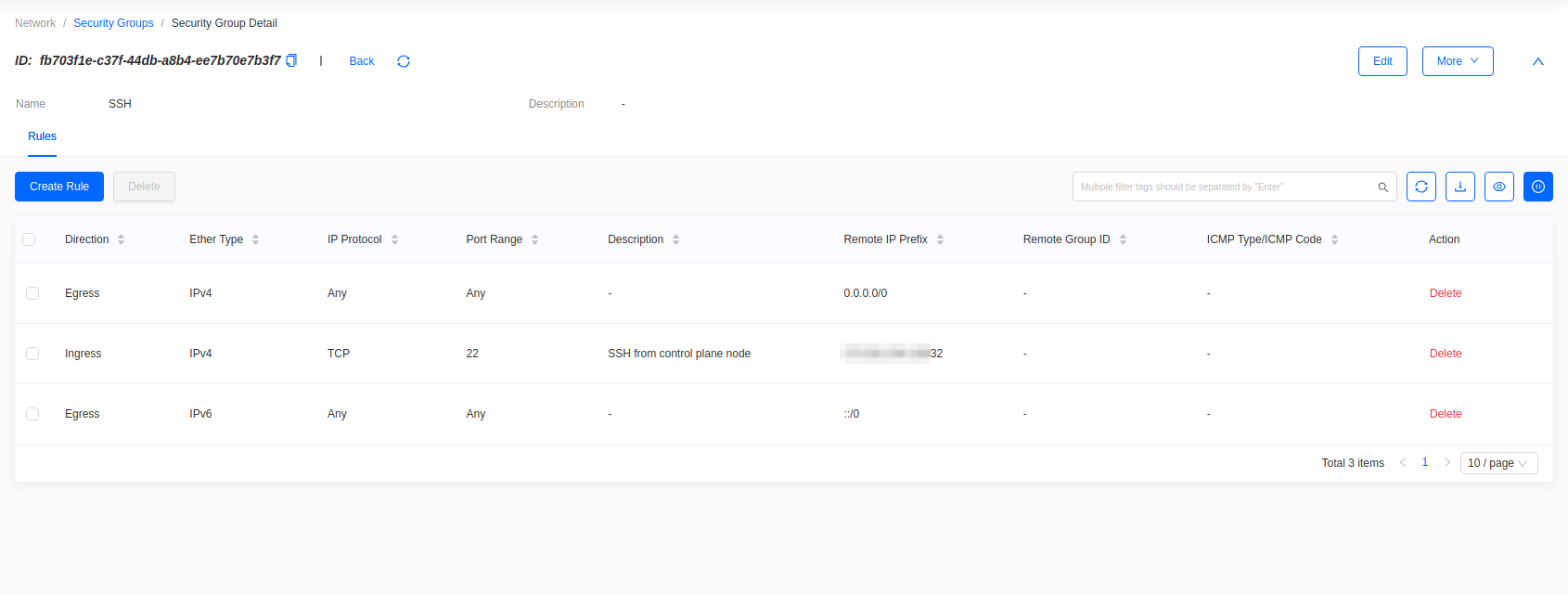
Click Create Rule.
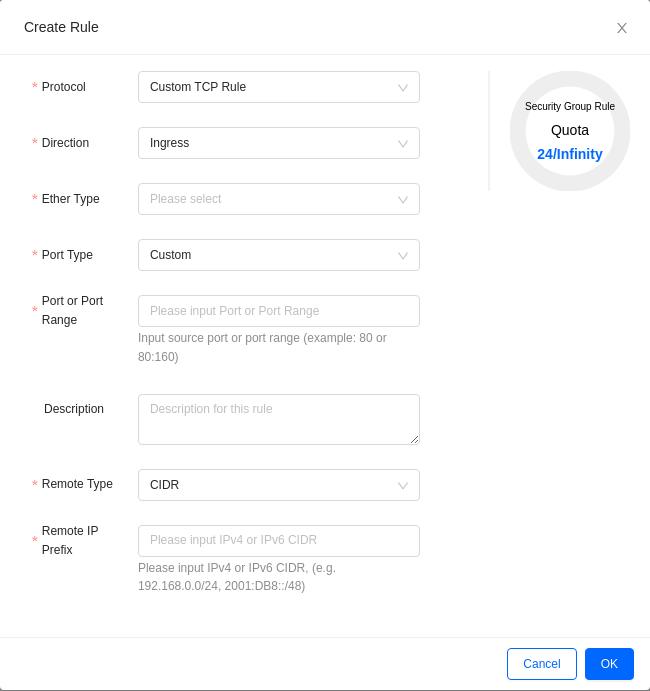
- Protocol: TCP. Direction: Ingress. Ether Type: IPv4.
- Port or Port Range:
22. - Remote Type: CIDR. Remote IP Prefix: the source allowed to connect.
Click OK.
Open only the ports you need, to the narrowest source range that works. Use the public IP you connect from, or a narrow CIDR containing it, rather than 0.0.0.0/0.
Add a key pair
An SSH key is injected at boot. It cannot be added to a running instance.
- Horizon
- Skyline
Go to Project -> Compute -> Key Pairs.

Click Create Key Pair to generate one, or Import Public Key to upload an existing key.
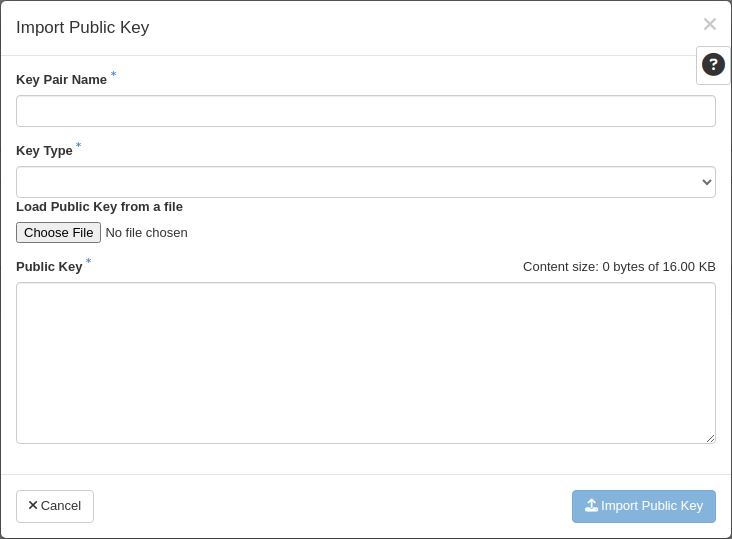
- Key Pair Name: the name shown when launching an instance.
- Key Type: SSH Key.
- Public Key: paste the key, or load it from a file.
Go to Compute -> Key Pairs.
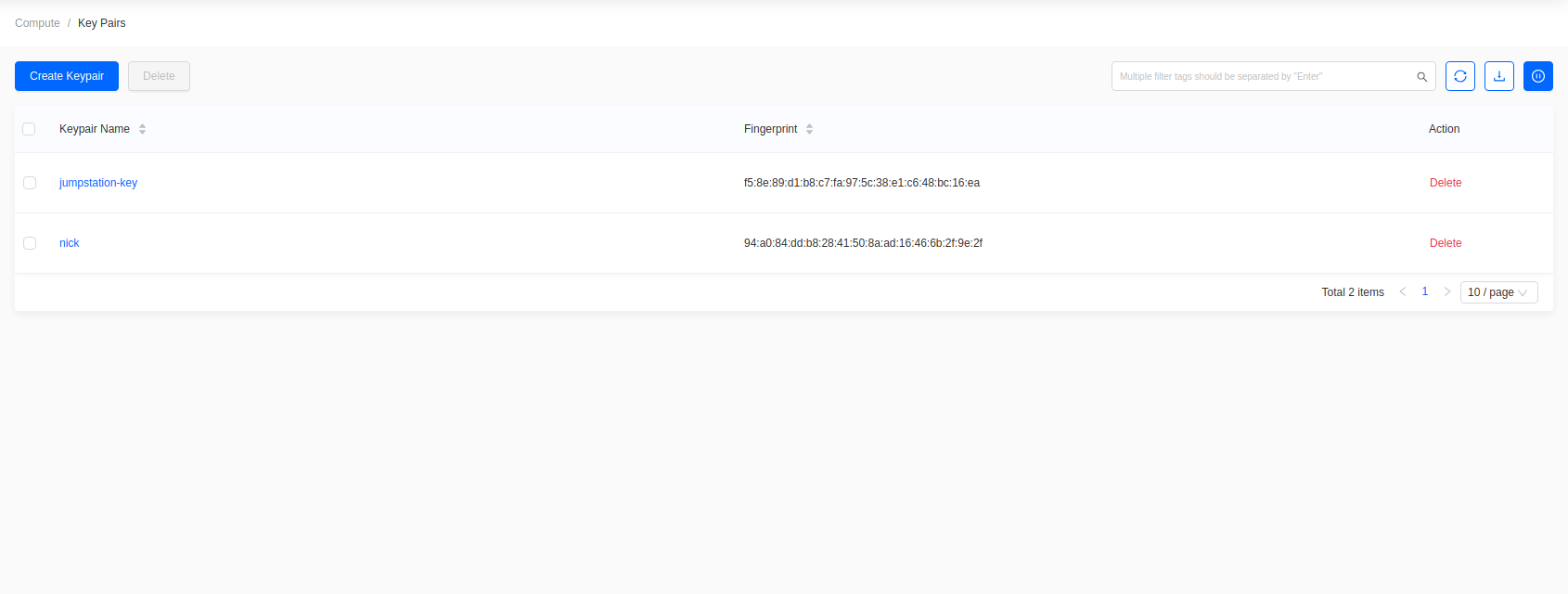
Click Create Keypair.
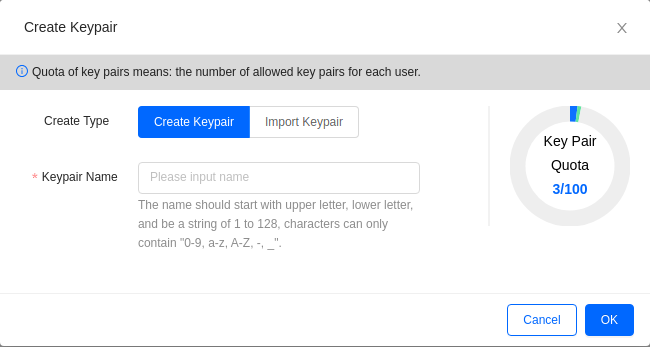
- Create Type: generate a new key pair, or import an existing public key.
- Keypair Name: the name shown when launching an instance.
- Public Key: paste the public key when importing.
To generate a key pair on your own machine first, see Create an SSH Key Pair.
Create the instance
- Horizon
- Skyline
Go to Project -> Compute -> Instances and click Launch Instance. This opens a wizard whose steps are listed down the left side.
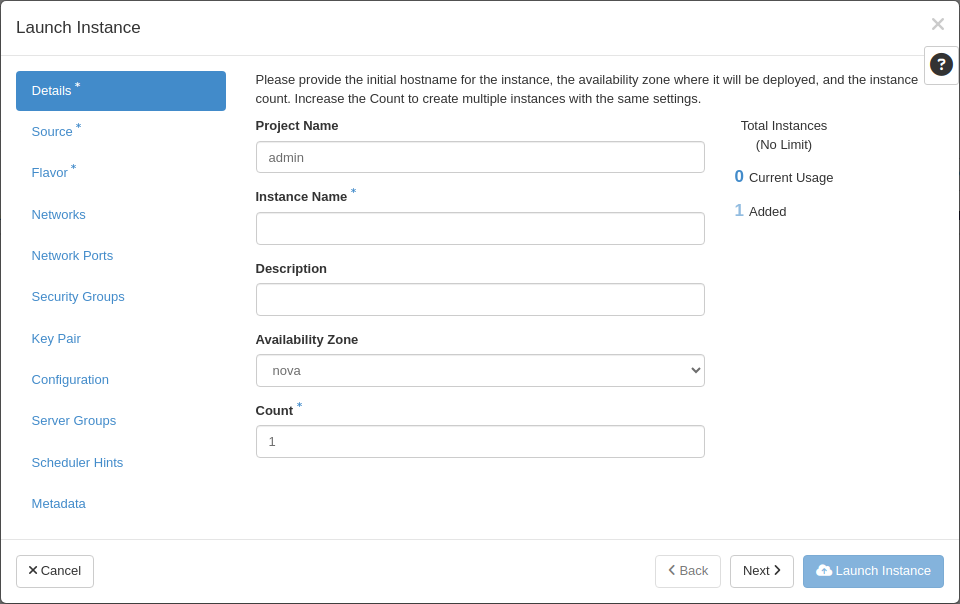
- Details — Instance Name, Availability Zone, Count.
- Source — Select Boot Source: Image. Leave Create New Volume set to Yes to boot from a Cinder volume in Ceph. Pick the image with its up arrow.
- Flavor — pick the flavor with its up arrow.
- Networks — select Private.
- Security Groups — select SSH.
- Key Pair — select the key pair, or import one here.
The remaining steps are optional. Click Launch Instance.
Go to Compute -> Instances and click Create Instance. This opens a four-step wizard.
Step 1: Base Config
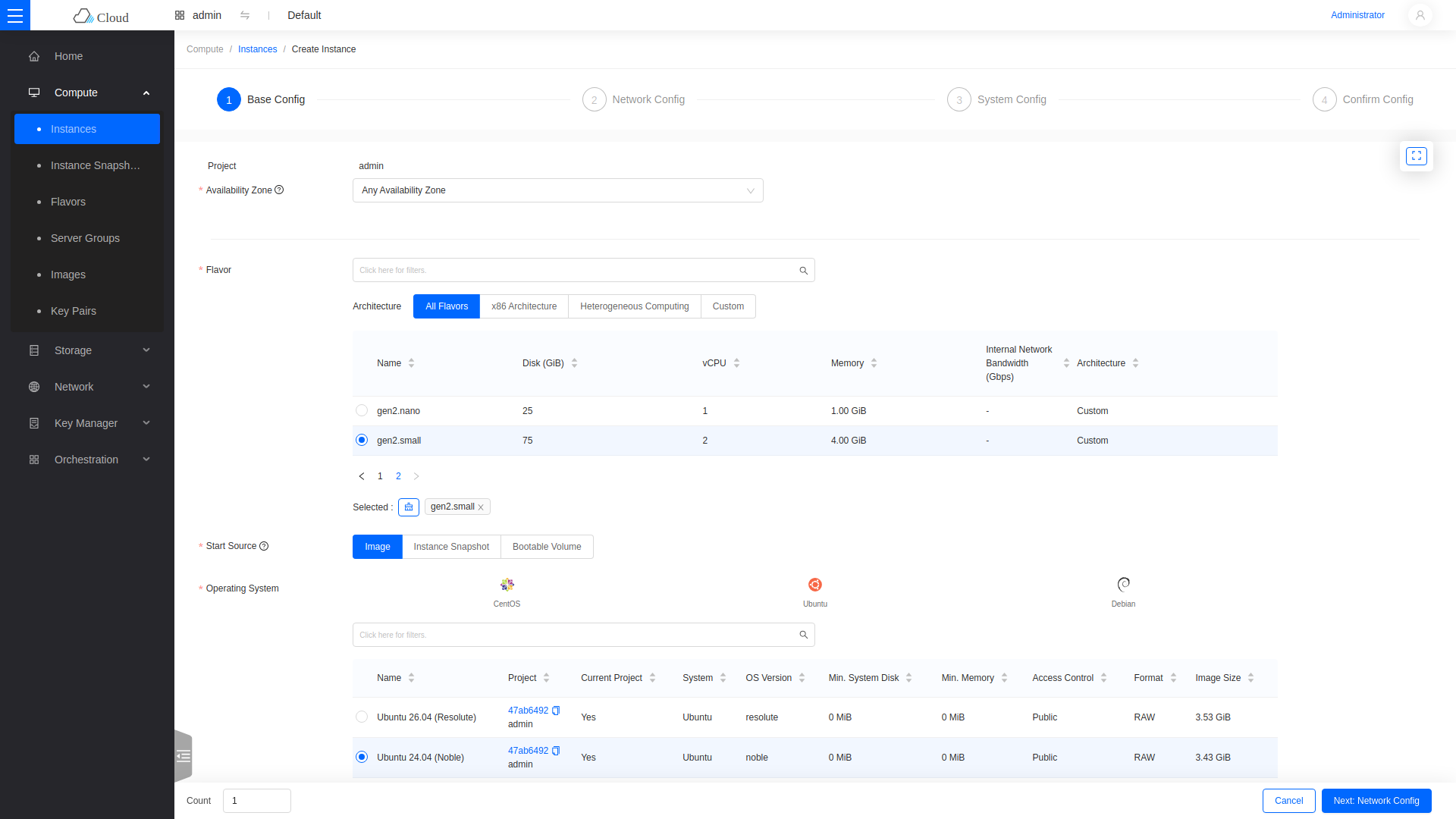
- Flavor: the vCPU, memory, and disk size. This example uses gen2.small.
- Start Source: Image. Then pick a distribution tab and the image.
- Boot From Volume: Yes creates a Cinder volume from the image, stored in Ceph.
- System Disk: choose a volume Type, then a Size at least the flavor's disk size, or the wizard will not advance.
Step 2: Network Config
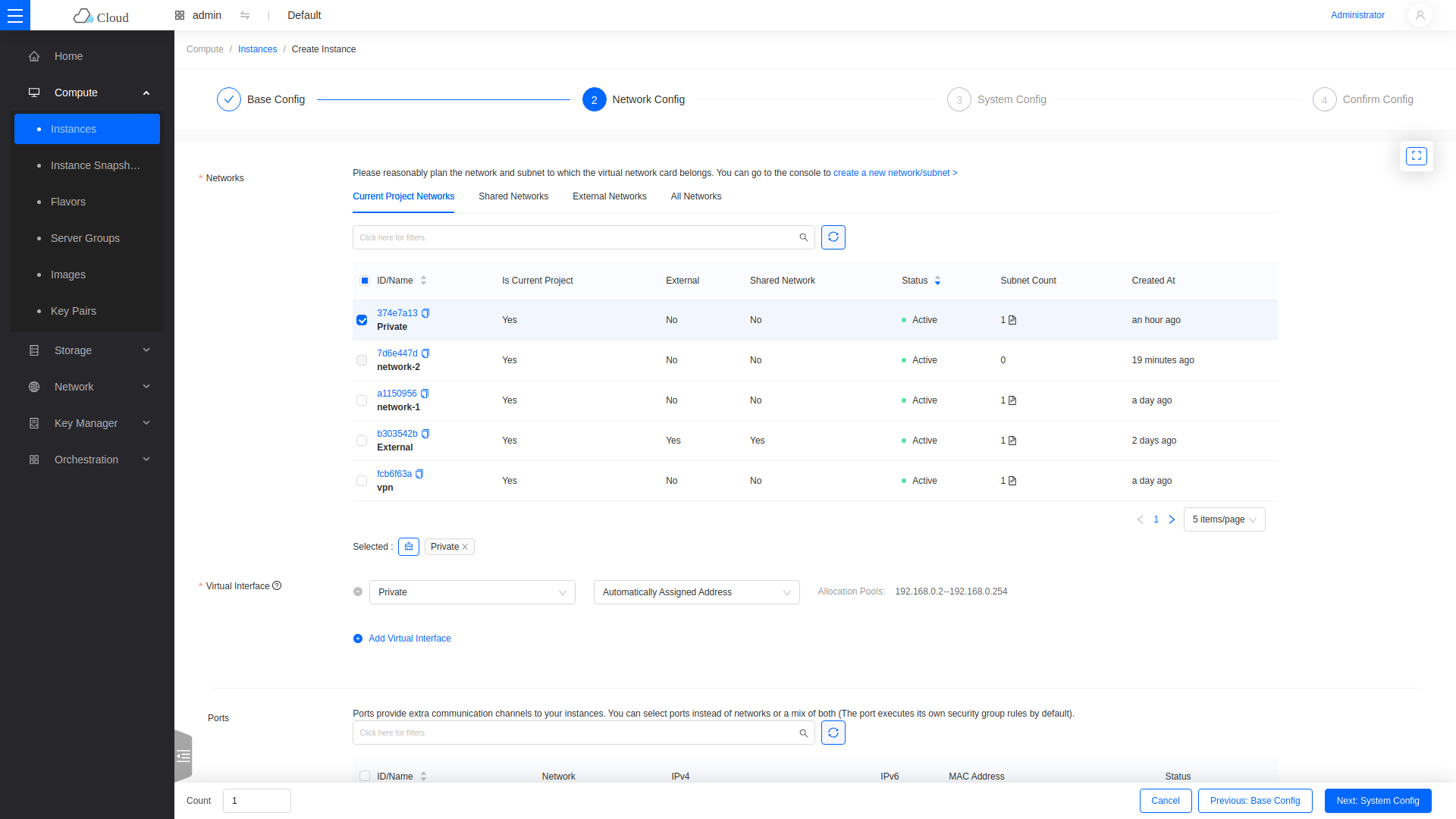
Select the Private network and the SSH security group.
Step 3: System Config
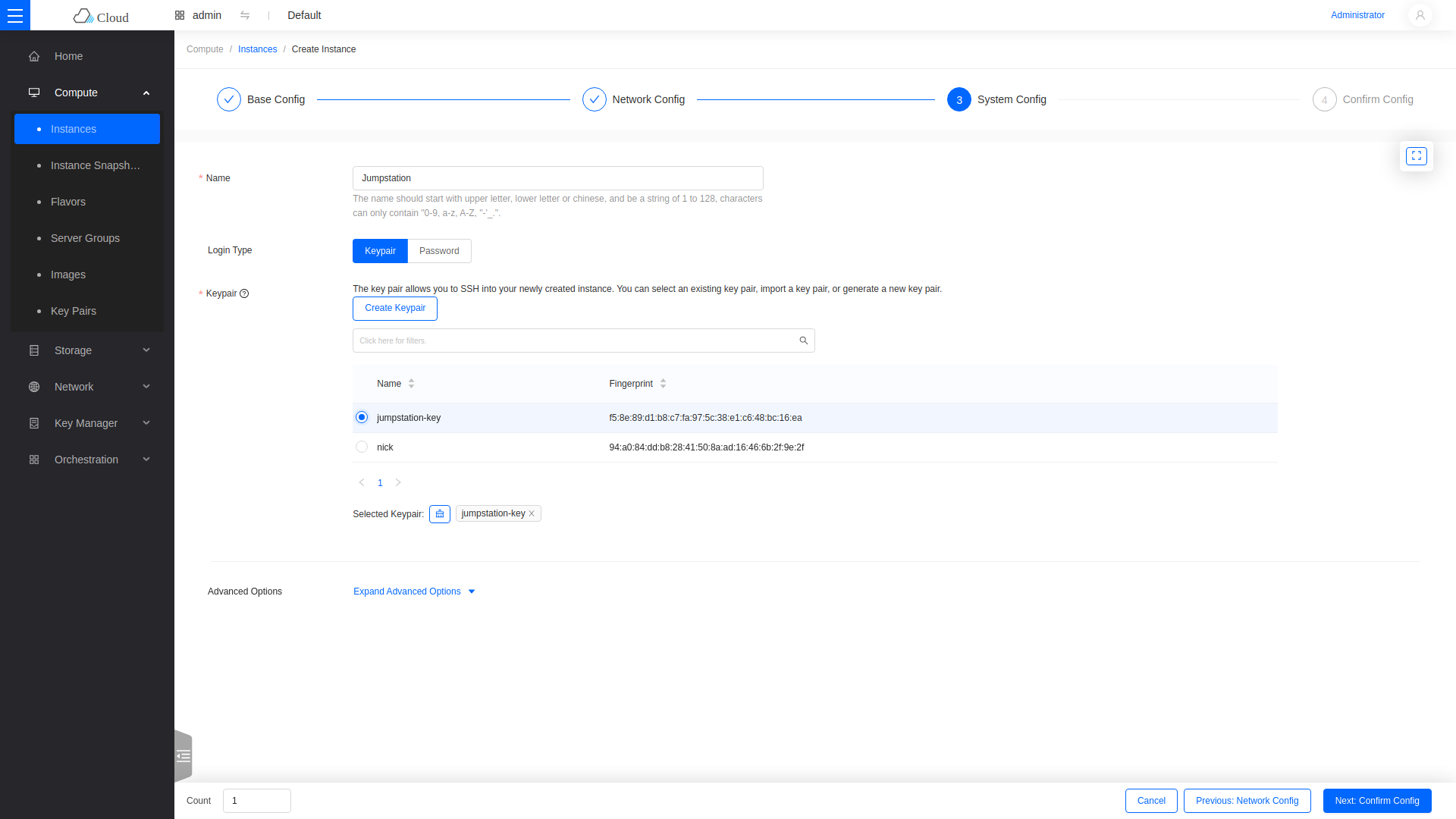
Set the Name, set Login Type to Keypair, and select the key pair.
Step 4: Confirm Config
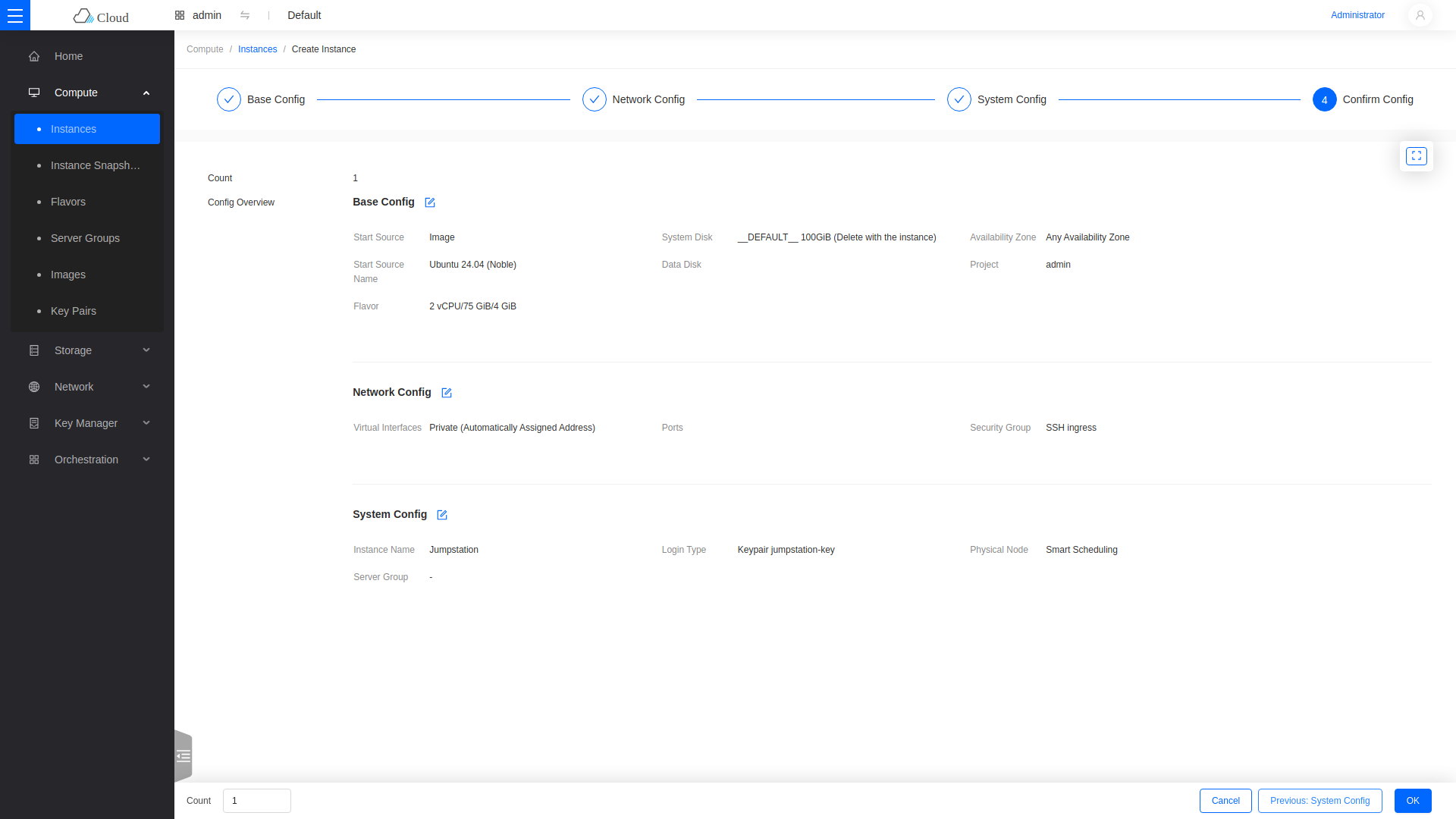
Review the summary and click OK.
Attaching an instance directly to External consumes a public IP and exposes it to the Internet. Use a private network and a floating IP instead.
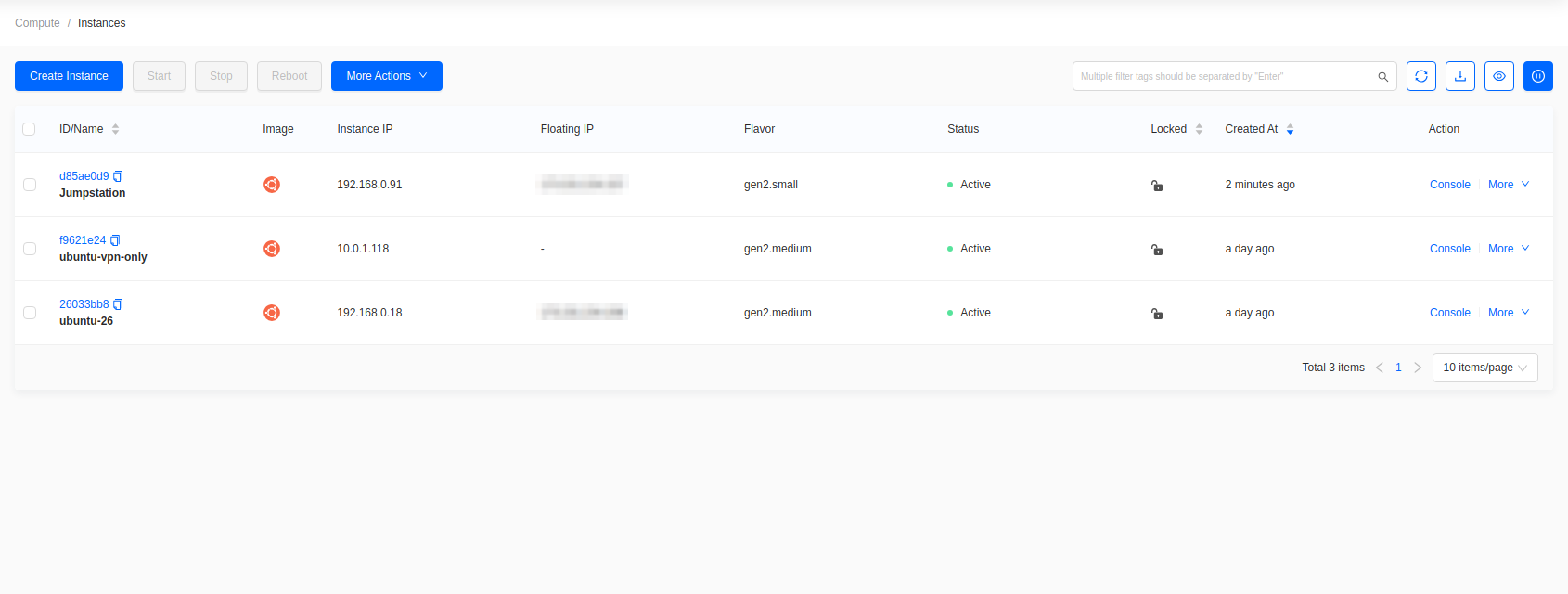
The instance builds in a few minutes.
- Horizon
- Skyline

Attach a floating IP
A floating IP makes the instance reachable from outside the cloud.
- Horizon
- Skyline
Go to Project -> Network -> Floating IPs.

Click Allocate IP To Project.
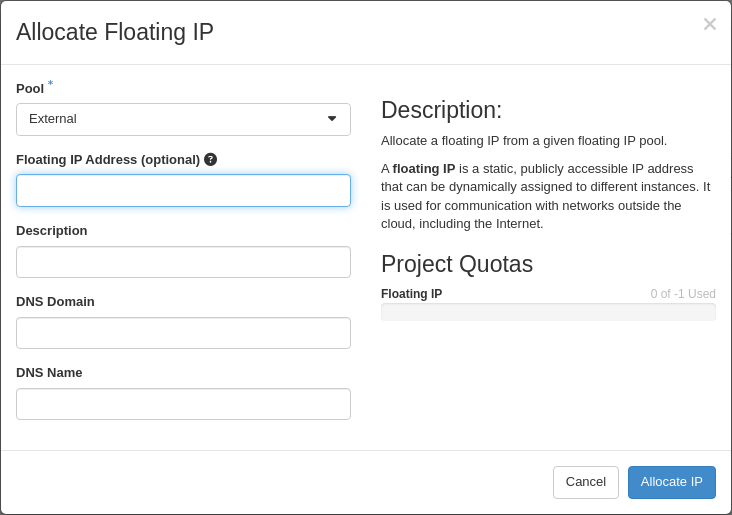
Select External as the Pool, then click Allocate IP.
Find the new address and click Associate, then select the instance's port.
Go to Network -> Floating IPs.
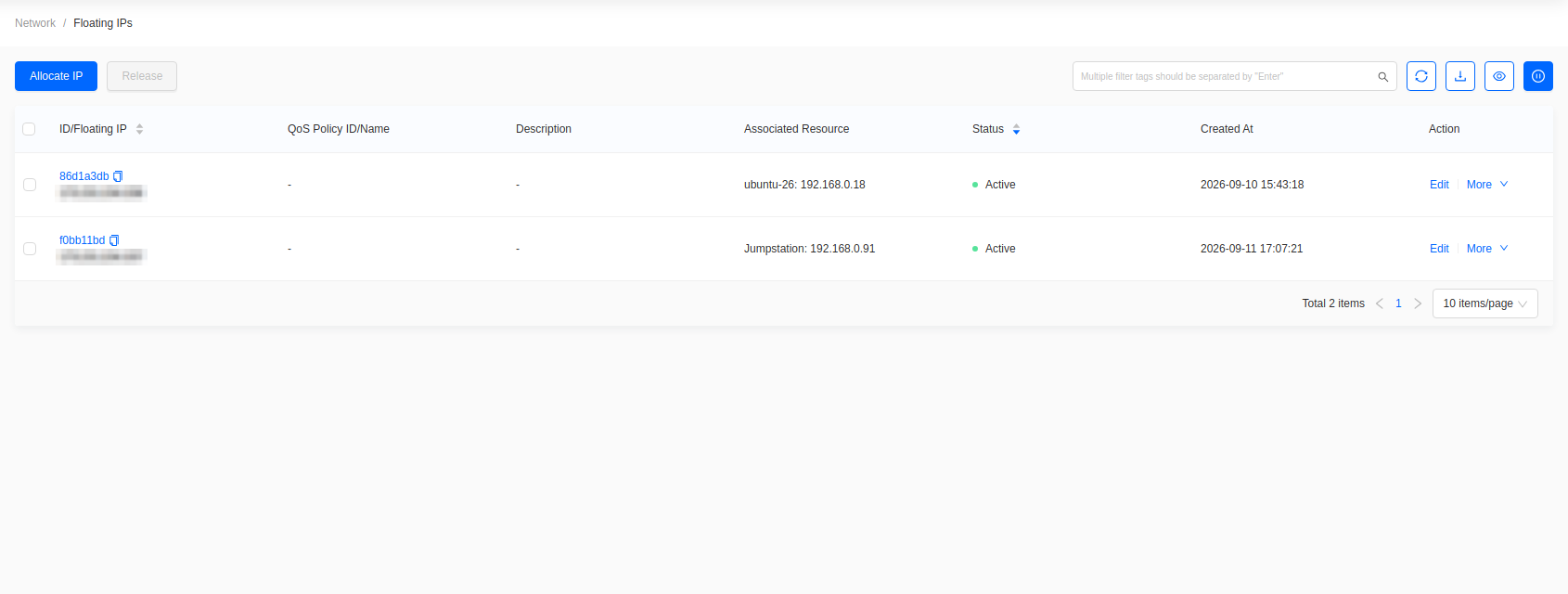
Click Allocate IP.
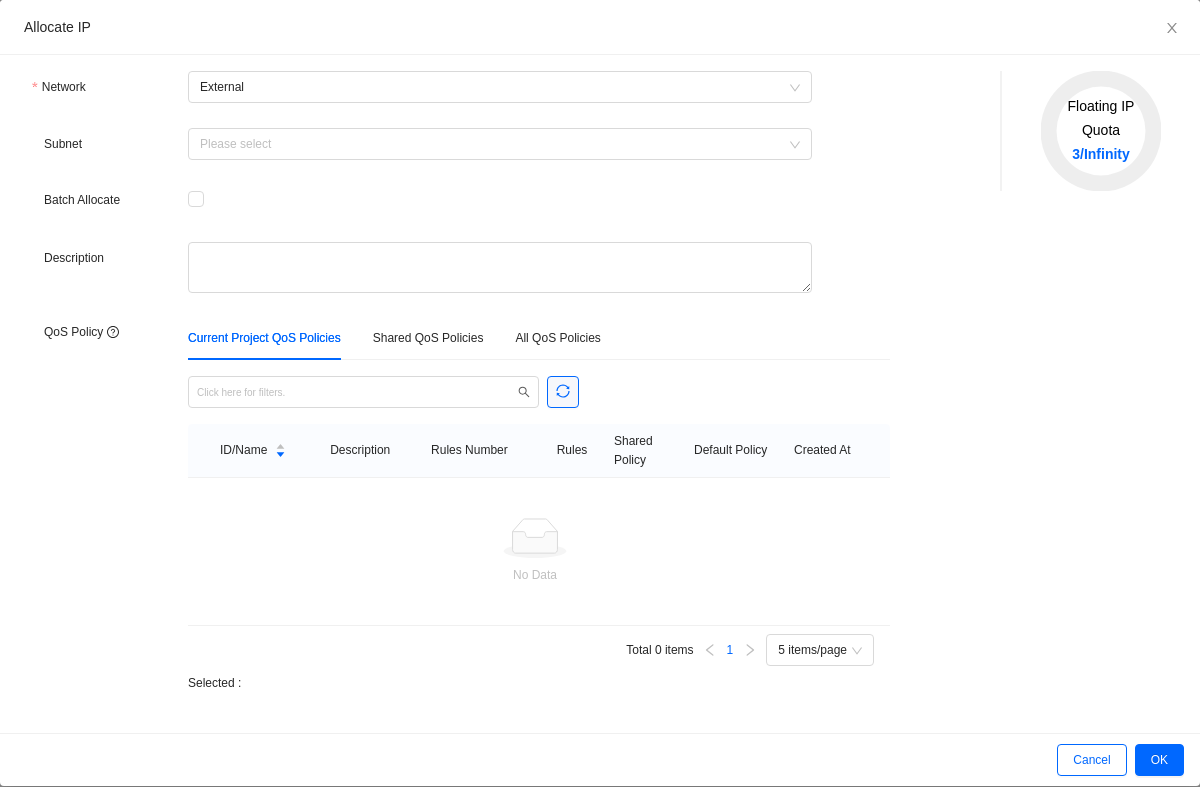
Select the External network, then click OK.
Find the new address and choose More -> Associate, then select the instance and its port.
The instance is now reachable over SSH from any source permitted by the SSH security group rule.